Is My Device Hacked? Glitches vs. Real Threats

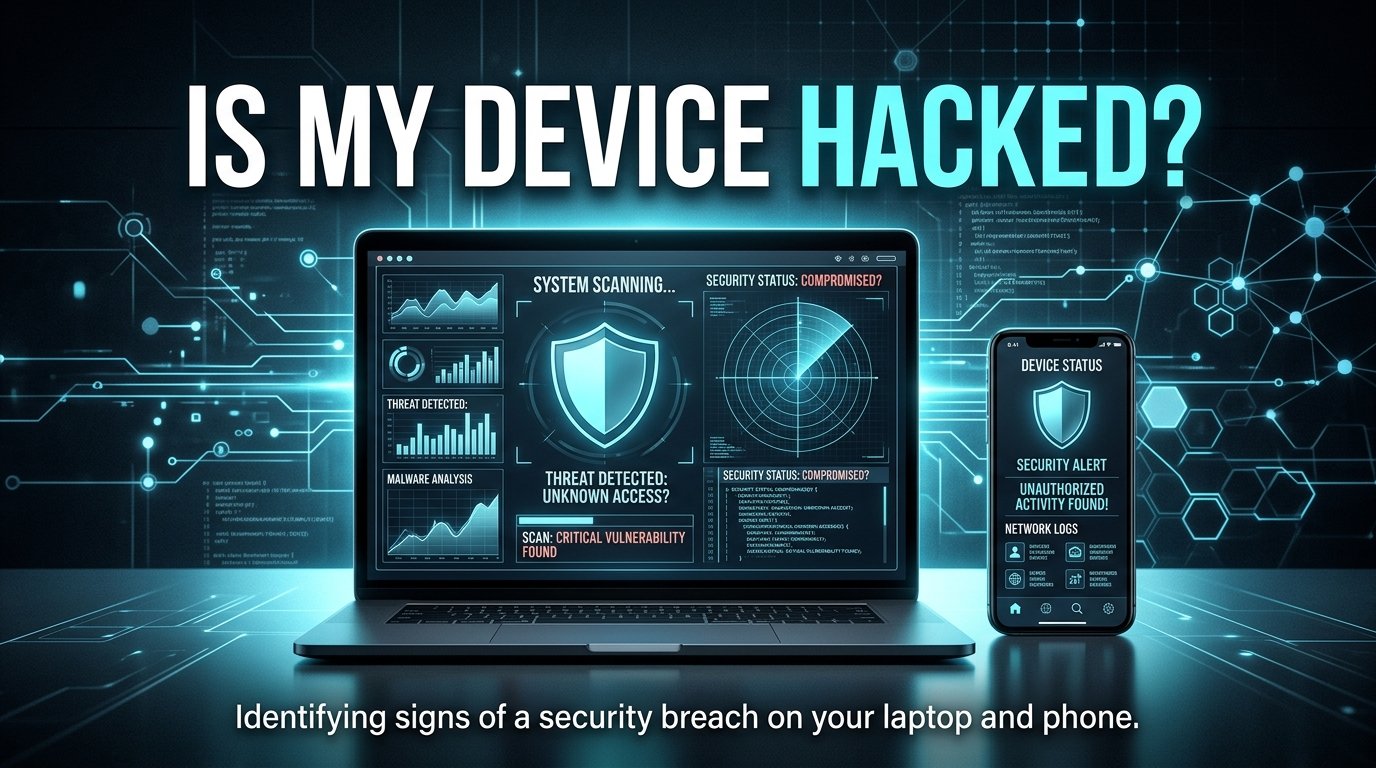
Table of Contents
Your screen flickers out of nowhere. Your phone battery drops from 80% to 10% in under an hour. You notice your cursor moving when your hands are nowhere near the keyboard.
Your stomach drops. Am I hacked?
That feeling is completely understandable — and you are not overreacting. In a world where data breaches make headlines weekly and "account compromised" emails arrive without warning, it's natural to assume the worst when your device acts strange. But here's the thing most people don't hear enough: the overwhelming majority of "weird" device behavior has a perfectly boring explanation. A misbehaving app. An overloaded processor. A battery that's simply getting old.
This guide will walk you through exactly how to tell the difference — calmly, step by step.
If you're looking to take this further, check out my deep dives on how to find someone's digital footprint and what is OSINT?, or read how to hire a professional digital investigator to secure your devices and accounts.
Why Devices Act "Weird" (And It's Usually Not a Hacker)
Before you reach for the panic button, let's cover the most common culprits behind strange device behavior.
Background app updates are probably the single biggest offender. When your phone or computer runs updates silently at night — or even mid-afternoon — they can eat up processing power, slow your internet connection, and cause the screen to behave oddly. That sluggishness you noticed at 2 PM? Likely Windows Update doing its thing.
System resource overload is another frequent cause. When you have 40 browser tabs open alongside a video call and a music app, your device's CPU (the brain of your computer) and RAM (its short-term memory) get stretched thin. The result looks a lot like a sick device: slow responses, unexpected freezes, choppy audio, and a fan spinning at full speed.
Hardware wear and tear is just physics. Batteries degrade. After a year or two of daily charging cycles, your phone battery genuinely holds less power — no malware required. Flickering screens are often a sign of a loose display cable or aging backlight. Random crashes on older laptops are frequently a sign that the hard drive is simply reaching the end of its lifespan.
Software bugs happen constantly. Apps crash, operating systems have memory leaks (where a program keeps consuming memory without releasing it), and wireless drivers act up. These are mundane engineering problems, not attacks.
The takeaway: treat your device like you'd treat a car making a new sound. First assume it's something routine. Then investigate.
Your Security Audit: How to Actually Check If You've Been Hacked
If you've ruled out the obvious causes and you're still uneasy, here is a simple, systematic way to check. No technical background needed.
Step 1: Audit Your Smartphone
Review your installed apps. Go to your app list and scroll through it slowly. Do you see any application you don't remember installing? Look for apps with generic, vague names like "System Service," "Phone Manager," or strings of random letters. Legitimate apps have recognizable names and publishers.
Check app permissions. On Android, go to Settings → Privacy → Permission Manager. On iPhone, go to Settings → Privacy & Security. Look through which apps have access to your camera, microphone, location, and contacts. Ask yourself: does this flashlight app really need access to my contacts? If something looks wrong, revoke the permission and consider uninstalling the app.
Check your data usage. Under Settings → Mobile Data (iPhone) or Settings → Network → Data Usage (Android), look for apps consuming unusual amounts of data in the background. A basic calculator app using 2GB of mobile data monthly is a red flag.
Step 2: Audit Your Computer
Open Task Manager (Windows) or Activity Monitor (Mac). On Windows, press Ctrl + Shift + Esc. On Mac, go to Applications → Utilities → Activity Monitor. Both tools show you every process currently running on your machine and how much CPU and memory each one is using.
Look for processes consuming an unusually high percentage of your CPU when you're not doing anything demanding. Google any process name you don't recognize. Most will turn out to be legitimate Windows or macOS background tasks. If a search turns up nothing — or turns up forum posts asking "is this malware?" — that warrants a closer look.
Review your startup programs. On Windows, open Task Manager and click the "Startup" tab. On Mac, go to System Settings → General → Login Items. These are programs that launch automatically every time you turn on your computer. Malware often hides here to ensure it keeps running. Remove anything unfamiliar.
Run a reputable antivirus scan. Windows Defender (built into Windows 10 and 11) is genuinely good and free. On Mac, Malwarebytes offers a solid free version. Run a full system scan. Let it finish completely before drawing conclusions.
Step 3: Check Your Home Network
Your router is the front door to everything in your home. If someone has access to your network, they could potentially intercept your traffic.
Open your router's admin panel — usually by typing 192.168.1.1 or 192.168.0.1 into your browser's address bar (check the sticker on your router for the exact address and login credentials). Look for a section labeled "Connected Devices," "Device List," or "DHCP Clients." This shows every device currently on your network. Count them. Your phone, laptop, smart TV, tablet, and any smart home devices should all be accounted for. An unfamiliar device — especially one with a generic name — is worth investigating.
Pro Tip: If you find an unknown device and you genuinely can't identify it, change your Wi-Fi password immediately. All legitimate devices will simply need to reconnect; any unauthorized device gets locked out.
Real Red Flags: What Actual Hacking Looks Like
Now for the genuine warning signs — the behaviors that mean you should act quickly.
- Unexplained financial activity. Unauthorized charges, transfers you didn't initiate, or bank login notifications from unfamiliar locations are serious. Contact your bank immediately if you see these.
- Password reset emails you didn't request. If you're receiving "someone requested a password reset" emails for your accounts, someone is actively trying to break into them.
- Login alerts from unexpected locations. Gmail, Facebook, and most major services will notify you if your account is accessed from a new city or country. Don't ignore these.
- Severe and unexplained battery drain. Normal battery aging is gradual. A phone that suddenly drains from full to dead in two hours — especially when sitting idle — may be running a crypto-miner (malicious software that uses your hardware to generate cryptocurrency for an attacker, without your knowledge).
- Contacts report receiving strange messages from you. If friends say they got suspicious links or odd messages from your accounts, your social media or email has likely been compromised.
- Antivirus finds something specific. A generic "your system may be slow" popup from an unknown program is almost certainly a scam. But if your legitimate, installed antivirus software flags a specific file by name, take that seriously.
If you're seeing several of these signs at once, don't wait. Change your passwords from a clean device, enable two-factor authentication on critical accounts, and consider contacting a local IT professional.
Peace of Mind: 5 Habits That Keep You Safe
The best security audit is the one you never need to run. These five practices build a solid foundation.
- 1. Enable Two-Factor Authentication (2FA) on every important account. This means that even if someone steals your password, they still can't log in without a second verification step (usually a code sent to your phone or generated by an authenticator like Google Authenticator). Start with your email and bank (refer to the Google 2FA setup guide for details).
- 2. Keep your software updated. Operating system and app updates frequently patch security vulnerabilities — known weaknesses that attackers exploit. Turning on automatic updates is one of the highest-value, lowest-effort security decisions you can make (read more about CISA's official public security resources).
- 3. Use a password manager. Reusing the same password across multiple sites is the single most common reason accounts get compromised. A password manager (Bitwarden is free and excellent) generates and stores unique, strong passwords for every site.
- 4. Be skeptical of unexpected messages. Phishing — where attackers disguise themselves as a trusted organization to trick you into clicking a link or entering your credentials — is the most common attack vector in the world. If an email or text message creates urgency ("Your account will be closed in 24 hours!") and asks you to click a link, go directly to the company's website instead.
- 5. Restart your devices regularly. A simple restart clears temporary memory, stops background processes that have run too long, and applies pending updates. Many "mysterious" device problems vanish after a reboot.
Your devices will always occasionally act strange. That's the nature of complex software running on aging hardware. But armed with a clear checklist and an honest understanding of what real threats look like, you can approach those moments with clarity instead of fear.
Check first. Panic never.
Frequently Asked Questions
How do I know if my phone is hacked?
Look for unexplained data usage spikes, apps you don't recognize, sudden severe battery drain, or accounts sending messages you didn't write. Run through the permission audit described above. One or two unusual signs alone are usually innocent — multiple red flags together warrant immediate action.
Can a device be hacked without clicking anything?
Yes, but it's rare for everyday users. "Zero-click" exploits exist but are typically used by sophisticated actors targeting specific individuals, not random people. For most users, threats arrive via phishing links, malicious app downloads, or reused passwords — all of which are avoidable.
Is my device hacked if it's running slow?
Almost certainly not. Slow performance is most commonly caused by too many running apps, an aging processor, a nearly full storage drive, or a background update. Run through the Task Manager or Activity Monitor check first before assuming the worst.
What should I do immediately if I think I've been hacked?
Change your passwords from a separate, trusted device. Enable two-factor authentication on your email and bank accounts. Run a full antivirus scan (using tools like Windows Defender, Malwarebytes, or check if your records are leaked on Have I Been Pwned). Check your bank and credit card statements. If you find confirmed evidence of compromise, contact your bank and consider a credit freeze.
Does restarting my device remove malware?
No. A restart can stop some in-memory processes temporarily, but persistent malware is designed to survive reboots by embedding itself in startup programs or system files. A full antivirus scan is the appropriate tool for removing confirmed infections.
Passionate OSINT investigator and cybersecurity professional with over 3 years of experience. Expertise in web penetration testing, background checks, fraud detection, and uncovering digital fingerprints. Providing verified truth in the digital shadows.
Need a
ProfessionalInvestigation?
If this case sounds familiar, I can help. Get a confidential consultation today.